Spacetalk
Change your region
Australia
Smartphone showing the SPACETALK app's "Online safety filter" setup, with a central blue shield icon surrounded by various social media and streaming app logos, and text explaining parental controls.
Sign up for Spacetalk News

Sign up to get early updates on Spacetalk’s new Online Safety features. You’ll be among the first to preview upcoming enhancements, see what we’re developing behind the scenes, and share feedback that helps shape the final product experience. Stay informed as we roll out improvements designed to give families more control, more confidence, and a safer digital journey.

By signing up, you agree to our privacy policy

Smartphone showing the SPACETALK app's "Online safety filter" setup, with a central blue shield icon surrounded by various social media and streaming app logos, and text explaining parental controls.
Sign up for Spacetalk News

Sign up to get early updates on Spacetalk’s new Online Safety features. You’ll be among the first to preview upcoming enhancements, see what we’re developing behind the scenes, and share feedback that helps shape the final product experience. Stay informed as we roll out improvements designed to give families more control, more confidence, and a safer digital journey.

By signing up, you agree to our privacy policy

We're here to help

Help & Support

A guide to your new app experience

Swipe for easy step-by-step instructions

A black smartphone shows the Spacetalk app with family photos and a safety message on a patterned grey background.
Step 1 Login using your existing Spacetalk account.
A black smartphone displays a "My Family" app in dark mode, showing a central profile for "Ruby is at school" surrounded by other family members' profiles, with a map button at the bottom.
Step 2 When you open the updated Spacetalk App, you’ll land in your new Space.
Black smartphone displaying a "My Family" app with Ruby's location marked "at school," on a gray background with a radar-like pattern and a vibrant green segmented circle overlay.
Step 3 This Space shows your family details and will be titled [Your Surname]’s Space — you can rename this anytime.
A smartphone displays a tracking app showing a child, Ruby Russell, at home on a map, with her activity stats and communication options.
Step 4 To view your Spacetalk Watch, tap the profile picture. You’ll go straight to the map and all your usual watch features, plus new ones.
Smartphone screen with a menu, highlighting "Pair device with", "Watch settings", and "Rewards settings".
Step 5 For more info on watch features, check out Watch Settings.
A smartphone screen shows a "Member admins" interface with a list of names and an "Add admin" button.
Step 6 Anyone who previously had ‘Device Sharing’ access will now also be an admin of your managed member or watch user.
A smartphone displaying a "Member management" screen with a list of members and an "Invite to Space" button.
Step 7 To learn about the different member roles, see Admin, Member and Managed Members.
A smartphone displaying a profile screen for "Lucy Collins" with managed members and a paired watch, on a light grey background with a circular dotted pattern.
Step 8 To update a managed member or kids’ profile, tap their icon. More info: Managed Member Settings.
Two young people walk outdoors, overlaid with a fitness app displaying 6,367 steps completed, 64% of a 10,000 step goal, and a progress graph.
Step 9 You’ll also see an extra Space created for contacts saved on your Spacetalk Watch. Note: if you have multiple watches, you’ll see multiple Spaces — one for each watch’s contacts.
A smartphone displays a dark-themed "My Family" app showing a girl named Ruby at school, surrounded by other family members, with an animated green circle.
Step 10 To switch Spaces, swipe left or right — you can see which Space you’re viewing by the three dots under the icons.
A black smartphone showing a family tracking app and a white Spacetalk smartwatch displaying a contact list, set against a grey background.
Step 11 These watch Spaces include people you’ve added as ‘Watch Contacts’. To change or check what is being shared into this Space, find more info at Space settings.
A smartphone displays an app menu with "Pair a watch" highlighted in green, on a light background with a circular pattern.
Step 12 To learn how to add members to your Space or contacts to your watches, tap the ( + ) icon.
A smartphone displays a child monitoring app for Ruby Russell, showing activity stats, location, and communication options.
Step 13 All your previous features (locations, calling, video calls, safe zones - now Places, and more) are still in the app, just in new, easy-to-find menus.

How-to guide:

Getting connected on the new Spacetalk App
"SPACETALK Welcome to the Freedom Platform" text surrounded by a circular collage of diverse lifestyle photos.
If you have an existing Spacetalk Watch, you must ensure your watch is up to date to continue pairing it with the app.
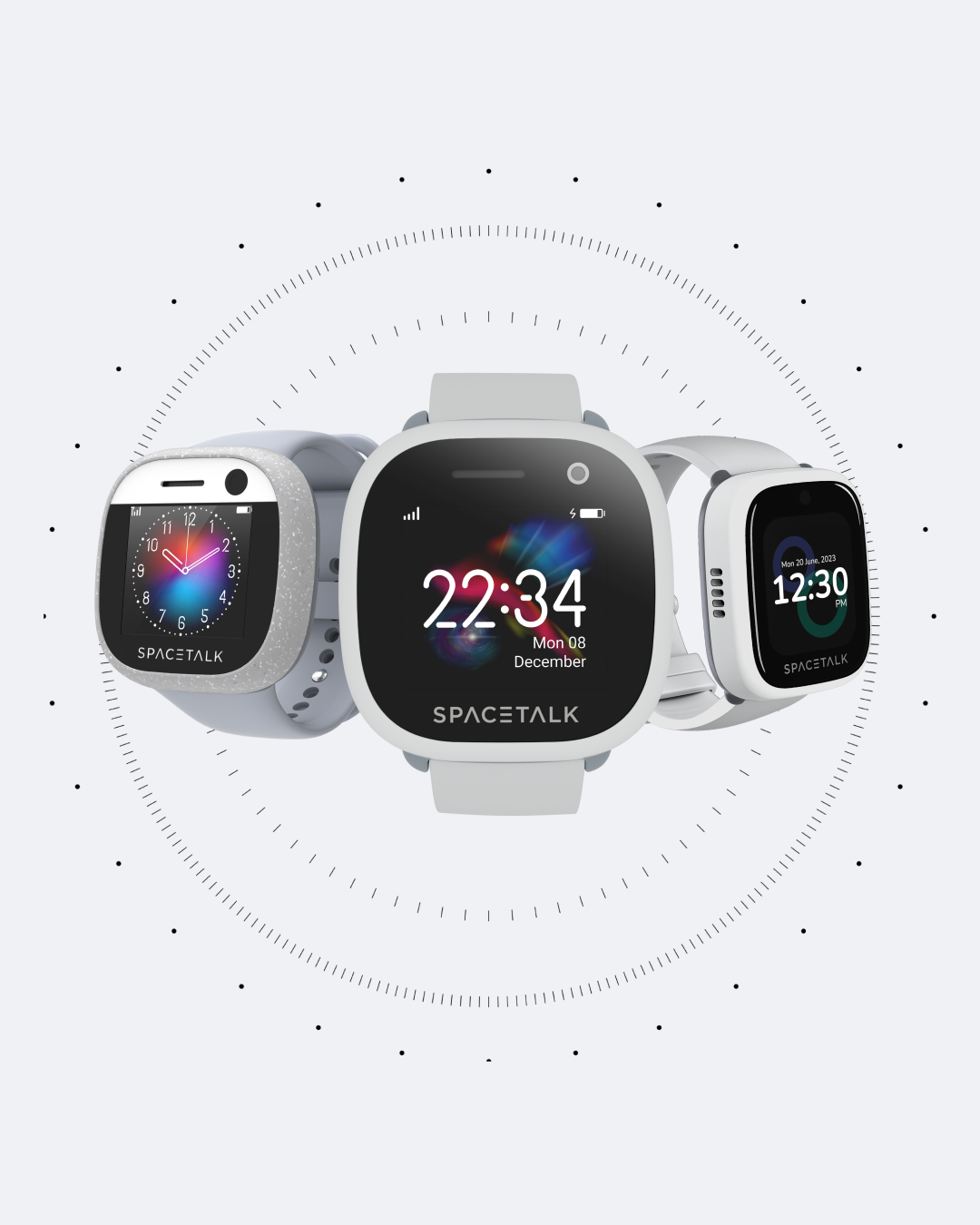
Three white and grey SPACETALK smartwatches displayed against an abstract clock-face background.
Loop, Adventurer 1/2 Smartwatch: Swipe Down to access the menu. Press the Settings (⚙️) button. Scroll down and select "Software Update". Your watch will ask you to install an update. If it does not, you are already up to date. NOTE: If you don’t complete this update, your watch will not operate correctly.
A white and grey SPACETALK smartwatch with a circular screen showing time, step count, message, and call icons. It has outward-curving arms with "0" and "SOS" buttons.
Life Smartwatch: Tap the screen and swipe to the left. Press the Settings (⚙️) button. Scroll down and select "Watch Update". Your watch will ask you to install an update. If it does not, you are already up to date. NOTE: If you don’t complete this update, your watch will not operate correctly.
A black smartphone displays the SPACETALK app with its name encircled by various images, set against a light gray background with a faint radial dotted pattern.
Update or download the new Spacetalk App from your App Store. We are constantly making improvement changes so check if you have the latest version of the app.

FAQs

  • During migration, some information can take a little longer to appear.
    What to do now:

    • Keep the watch turned on and charging when possible.
    • Make sure the Spacetalk App is up to date (App Store / Google Play)
    • Ensure you have the latest firmware for your watch
      • Loop (SK2-4G-1) is 1.1.27
      • Adventurer 2 (ST3-4G-1) is 20250926
      • Life (IF_W540M) is 0.1.14.99

    If still not working properly, contact Support with your name, the IMEI number of the watch(es), the #watchhelp hashtag, a screenshot and the time it last occurred.

  • Our current migration has caused issues for some users.
    Try this (in order):

    1. Make sure your phone app is updated to the latest version here. Even if you have the new version, it’s still good to re-check as we are releasing updates often
    2. Restart the watch (normal restart only; do not factory reset)
    3. If prompted, update watch software in the Spacetalk App.
    4. If still not working properly, contact Support with name, IMEI number, the #watchhelp hashtag, a screenshot and the time it last occurred.
  • The new platform groups trusted contacts in a single Space for better safety and control. You have full control of your Spaces and can easily remove members from that Space in the ⚙️ Settings icon in the top right hand corner, in the Member Management section with the Remove from Space button at the bottom. To check that location is not being shared into this Space, within Member Management tap each user to see what they are sharing into the Space. You can turn permissions off and on for yourself or your Managed Members.

  • The fastest way to get in touch with customer support is via our AI chat 'Arti' in the bottom right hand corner of this page.

    1. All trusted contacts now need the Spacetalk App to connect.
    2. Invite steps: Open the Spacetalk App → Space → tap the + icon in the bottom right hand corner → Add member → Invite or Share code → send the invite link/code to the person you trust. They can join and set up their profile quickly.
  • The login and join page are the same screen, when signed out of the app. To sign-in simply enter your email or phone number associated with your account. An OTP (one time password) will be sent to both the email and phone number attached to your account.
    If you’re directed to a profile setup page, please try again using different details. For example, the email address you entered may have been incorrect. If you are still being asked to set-up your profile, we suggest you raise this with us, providing your email, phone number, and the day and time which you last experienced this issue.

  • The old Spacetalk app is no longer in use. To provide better security and enhanced features, we’ve upgraded our technology and moved all customers to the new, more secure platform.

Download the Spacetalk App today to join the Freedom Platform

Try the Spacetalk App for free

Apple
Download for iOS
Google
Download for Android